
Daily Work Record (DWR) App
User Guide
RICE West Nile · MEAL Portal · Version 1.0, October 2026
App address: ricewn-dwr.pages.dev
Contents
1What the app does
The DWR app lets you fill your Daily Work Record on your phone every day, instead of typing it into Excel at the end of the month.
- Record your start and end time, planned activities, activities implemented and any comment.
- See your hours for the month, extra hours and evaluation score as you go.
- Download your completed DWR in the official RICE-WN Excel template — header, totals, formulas and your signature already filled in.
- Keep working without internet; your records sync when you reconnect.
- Supervisors can view and download the DWRs of staff they supervise.
2Getting started
You need: a smartphone (Android or iPhone) or computer, an email address you can open, and internet for the first visit.
- Open Chrome (Android) or Safari (iPhone) and go to ricewn-dwr.pages.dev.
- Create your account or sign in (see section 3).
- Add the app to your home screen so it opens like a normal app:
- Android (Chrome): tap the ⋮ menu → Add to Home screen (or Install app) → Add.
- iPhone (Safari): tap the Share button ⬆ → Add to Home Screen → Add.
The app has four tabs at the bottom:

| Tab | Use it to |
|---|---|
| Today | Record one day: times, planned activities, activities implemented, comment. |
| Month | See your monthly summary, find missing days and download your DWR. |
| Team | Supervisors only — view and download the DWRs of staff who report to you. |
| Profile | Your name, job title, supervisor, usual working hours and signature. |
The ? button at the top of the app opens this guide at any time.
3Create your account
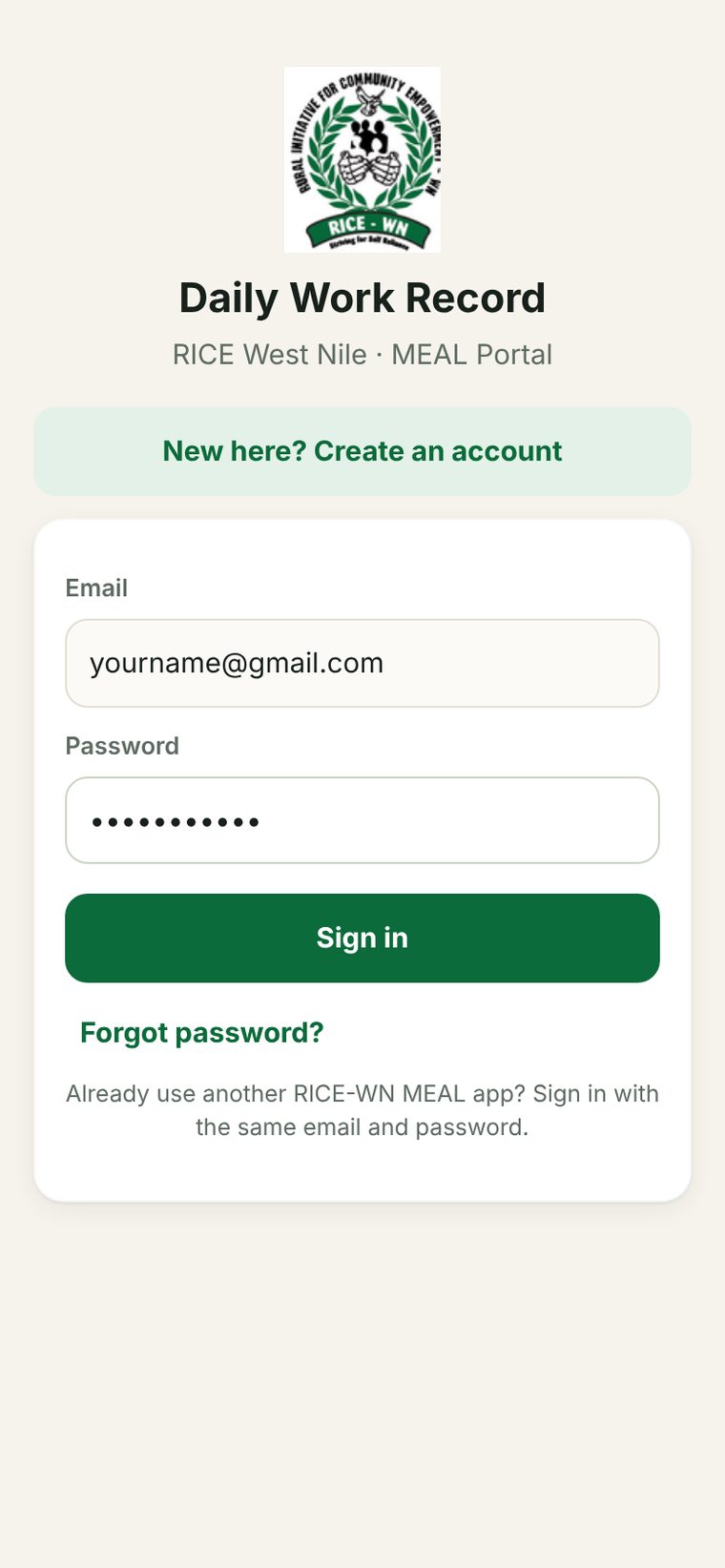
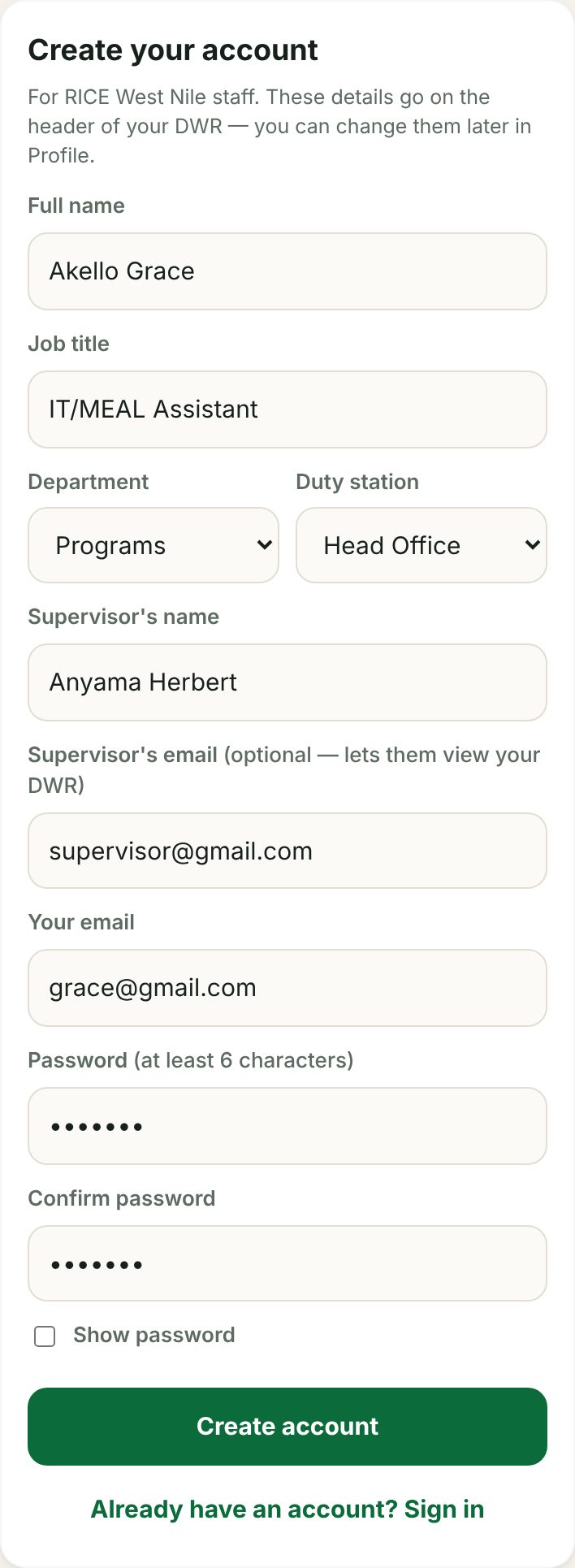
New staff — sign up
- On the sign-in screen tap New here? Create an account.
- Fill in your full name and job title exactly as they should appear on your DWR.
- Choose your department (Programs or Operations) and duty station (Head Office, Arua or Moyo Program Area).
- Type your supervisor's name. If you also type your supervisor's email, your supervisor can view and download your DWR in the app.
- Enter your email and a password of at least 6 characters, then type the password again.
- Tap Create account. You are taken straight into the app.
Signing in later
Enter your email and password and tap Sign in. The app remembers you, so you normally sign in only once on each phone.
Forgot your password?
Tap Forgot password?, enter your email and tap Send reset link. Open the email, tap the link, and set a new password in the app.
4Your profile and signature
Your profile fills the top part of your DWR. Check it once after creating your account: tap Profile.
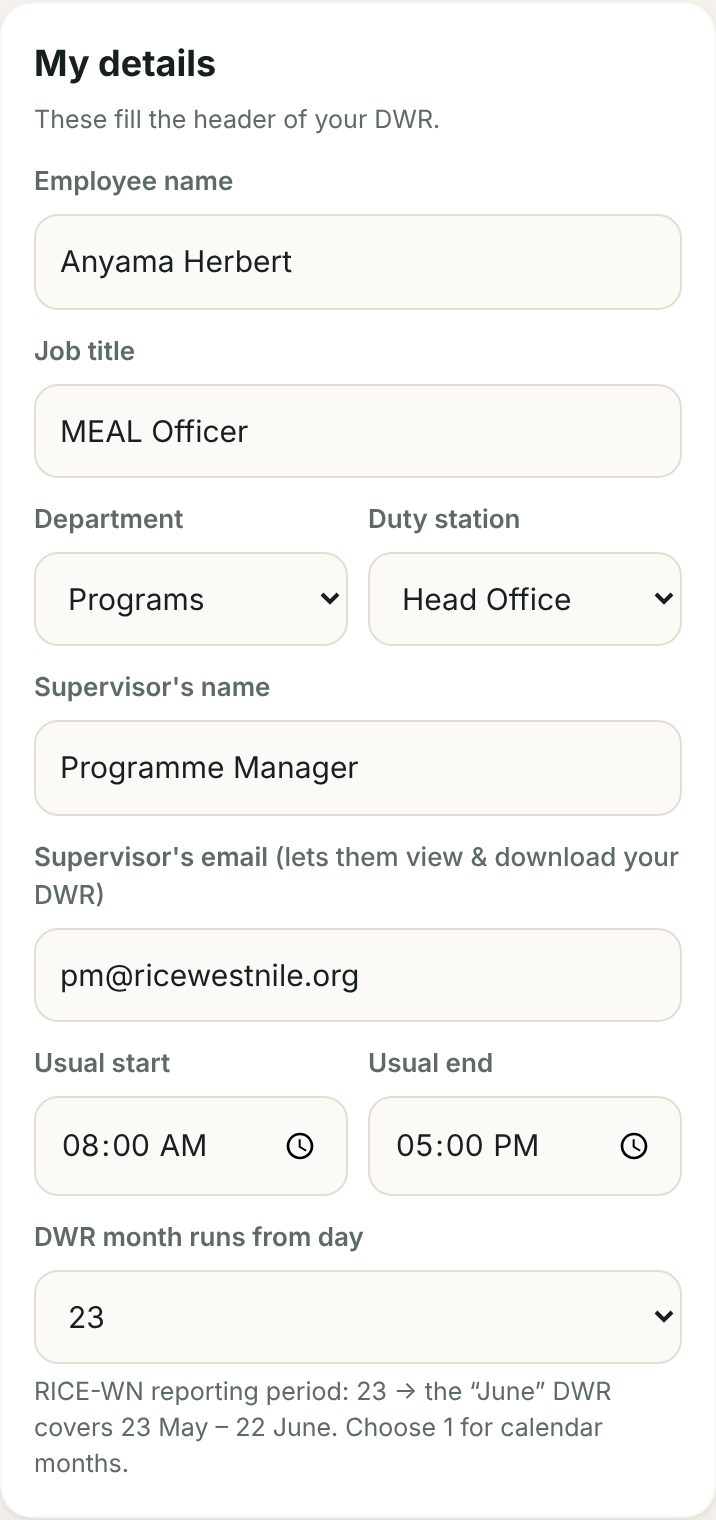
| Field | What to enter |
|---|---|
| Employee name, Job title | As they should appear on the DWR. |
| Department, Duty station | Choose from the list. |
| Supervisor's name | Printed as "Name of Supervisor" on the DWR. |
| Supervisor's email | Lets that person see your DWR in the Team tab. Use the email they sign in with. |
| Usual start / end | Your normal hours (e.g. 8:00 AM – 5:00 PM). Filled in automatically when you record an earlier day. |
| DWR month runs from day | Leave at 23 — the RICE-WN reporting period (23rd to 22nd). |
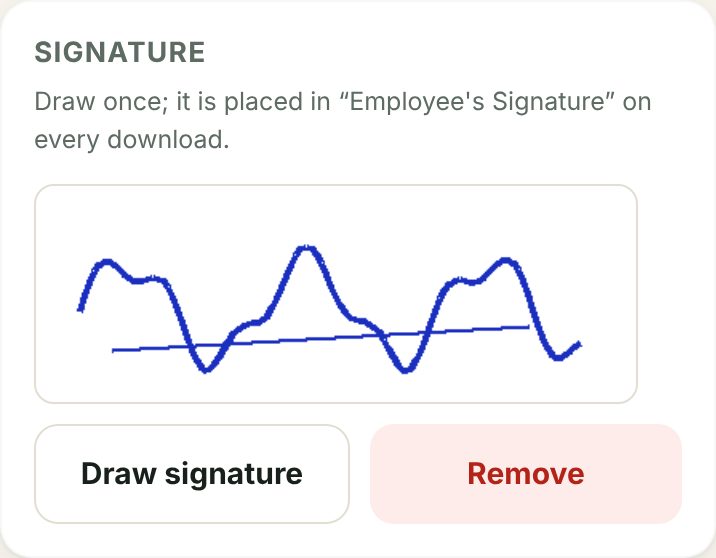
Add your signature (do this once)
- Tap Draw signature.
- Sign with your finger in the box. Tap Clear to try again.
- Tap Done, then Save details.
Your signature is then placed in Employee's Signature on every DWR you download. Tap Remove → Save details to delete it.
5Record your day
Use the Today tab. The best habit is two quick visits a day:
| When | What to do |
|---|---|
| Morning — when you start work | Tap Now beside Start time. Type your planned activities. Tap Save day. |
| Evening — when you finish | Tap Now beside End time. Fill activities implemented. Tap Update day. |
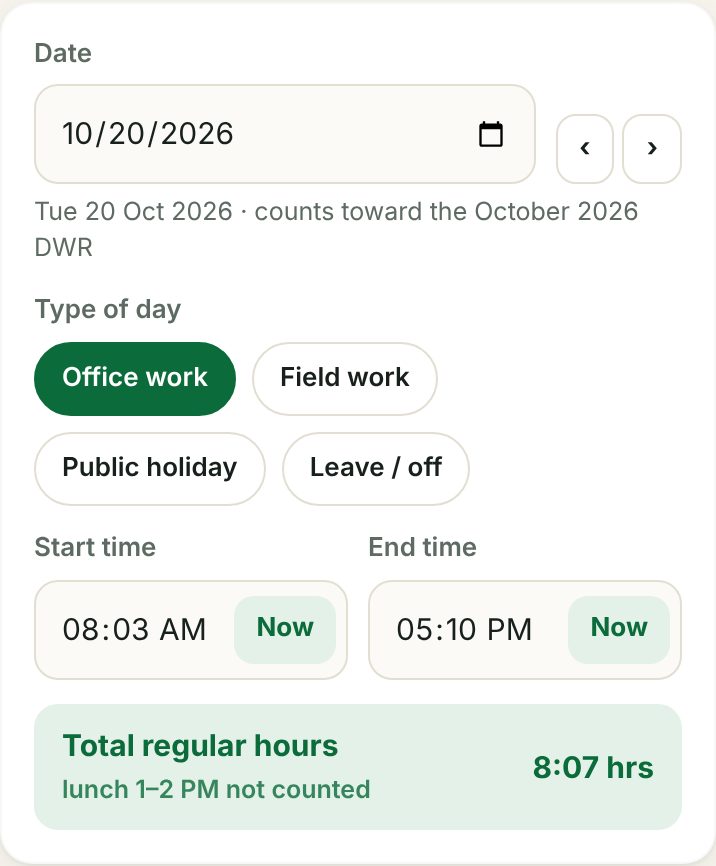
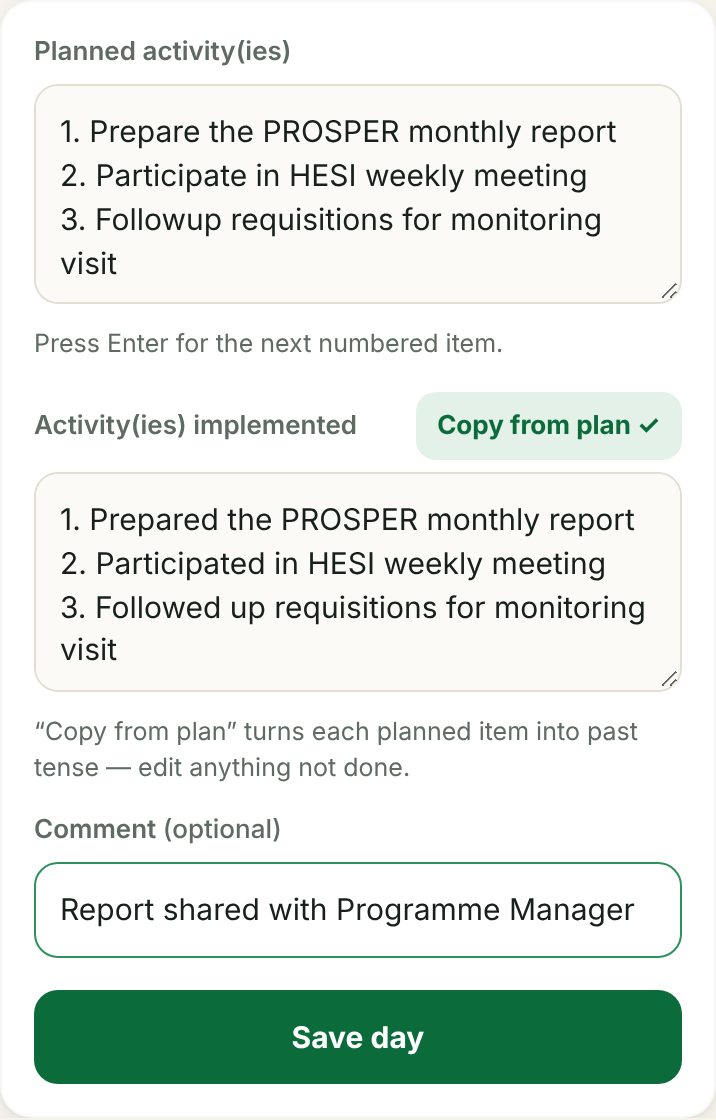
Step by step
- Date — today is selected. Use ‹ › or tap the date to record another day. The line under the date shows which month's DWR the day belongs to.
- Type of day — Office work, Field work, Public holiday or Leave / off.
- Start time / End time — type the time or tap Now. The green box shows the hours counted for the day.
- Planned activity(ies) — start typing and the app numbers the list for you: press Enter for the next number.
- Activity(ies) implemented — tap Copy from plan ✓ to copy your plan into the past tense ("Participate" → "Participated", "Travel" → "Travelled"). Then edit it to show what really happened: remove anything not done, add anything unplanned.
- Comment (optional) — e.g. "Part of outcome monitoring", "Activity postponed by partner".
- Tap Save day. You will see Saved ✓.
Public holidays and leave
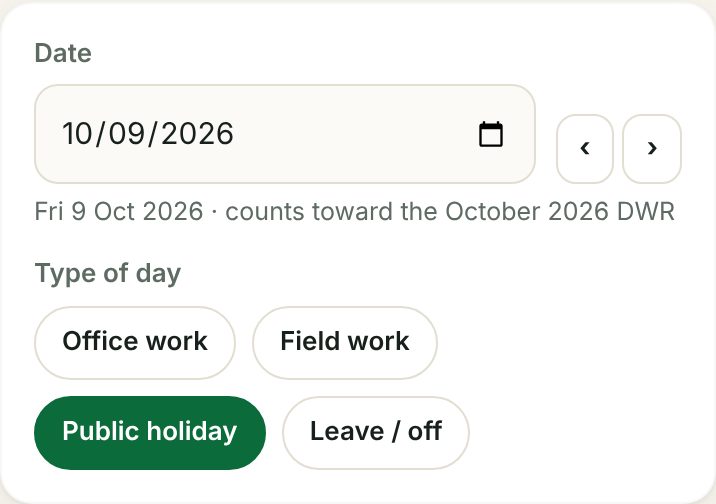
Choose Public holiday or Leave / off. The time boxes disappear and the day counts 0 hours.
Type the name in the activity box, e.g. Public Holiday (Heroes' Day) or Annual leave.
Recording public holidays also lowers the suggested number of working days for the month.
Change or delete a day
Pick the date (or tap the day in the Month tab). The saved record opens. Change it and tap Update day, or tap Delete.
6How hours are counted
Hours = End time − Start time − the lunch hour. The lunch break, 1:00 PM to 2:00 PM, is never counted. A normal day of 8:00 AM to 5:00 PM therefore counts 8 hours.
| Start – End | Hours counted | Why |
|---|---|---|
| 8:00 AM – 5:00 PM | 8:00 | 9 hours minus 1 hour lunch |
| 8:10 AM – 5:45 PM | 8:35 | 9:35 minus lunch |
| 8:00 AM – 7:00 PM | 10:00 | Long field day: 11 hours minus lunch |
| 8:00 AM – 1:00 PM | 5:00 | Left before lunch — nothing deducted |
| 8:00 AM – 1:30 PM | 5:00 | Only the time after 1 PM is lunch |
| 2:00 PM – 5:00 PM | 3:00 | Started after lunch |
| Public holiday / leave | 0:00 | No times recorded |
The same rule is built into the downloaded Excel file, so hours stay correct if anyone edits a time there.
7Your month and the DWR download
The reporting period: 23rd to 22nd
Each month's DWR runs from the 23rd of the previous month to the 22nd of that month. A day on or after the 23rd belongs to the next month's DWR.
| DWR month | Covers |
|---|---|
| October 2026 | 23 September – 22 October 2026 |
| November 2026 | 23 October – 22 November 2026 |
| December 2026 | 23 November – 22 December 2026 |
| January 2027 | 23 December 2026 – 22 January 2027 |
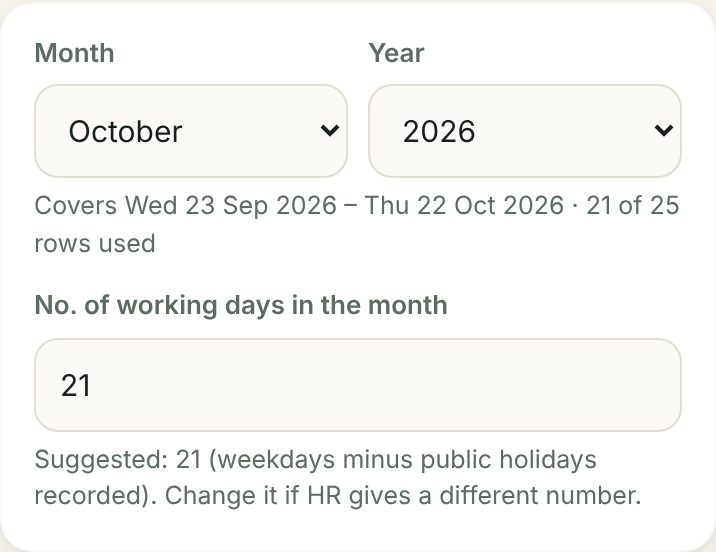
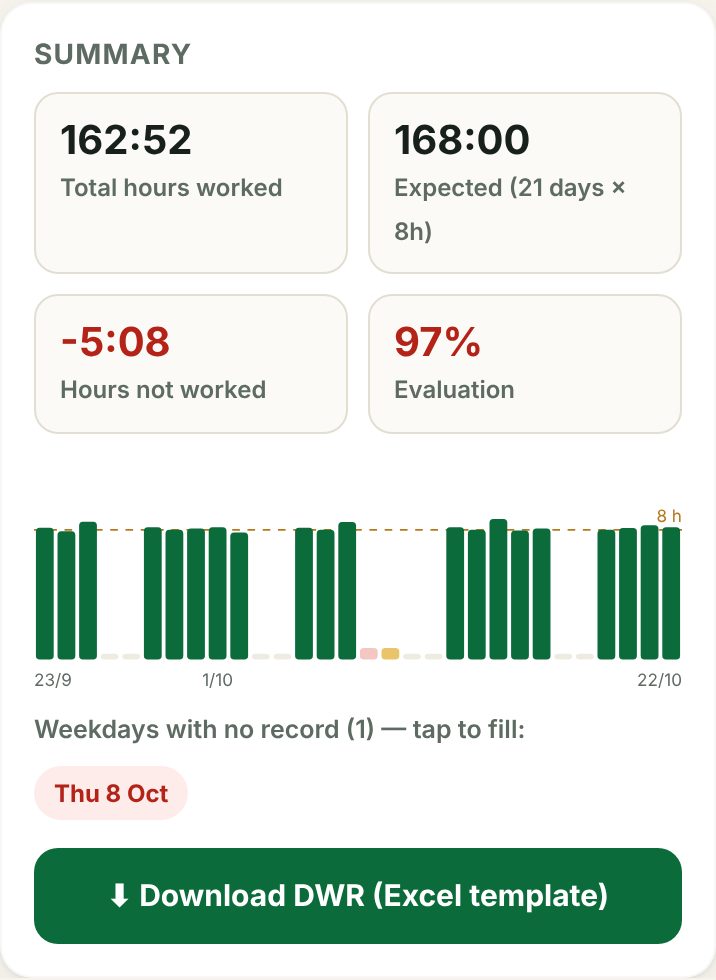
Using the Month tab
- Choose the month and year. The line below shows the exact dates covered and how many of the 25 rows are used.
- Check "No. of working days in the month". The app suggests weekdays minus recorded public holidays. If HR gives a different number, type it in — the app remembers it for that month.
- Read your summary:
Box Meaning Total hours worked All hours recorded in the period. Expected Working days × 8 hours. Extra hours / Hours not worked Difference between worked and expected (green = extra, red = short). Evaluation Hours worked ÷ expected hours. 100% or more means you met the expected hours. - Look at the chart. One bar per day; the dotted line is 8 hours.
work day public holiday leave weekday not recorded weekend - Fill missing days. Weekdays with no record are listed in red. Tap one to open it in the Today tab and fill it.
- Tap ⬇ Download DWR (Excel template). The file is saved as e.g. Herbert_DWR for October 2026.xlsx in your phone's Downloads.
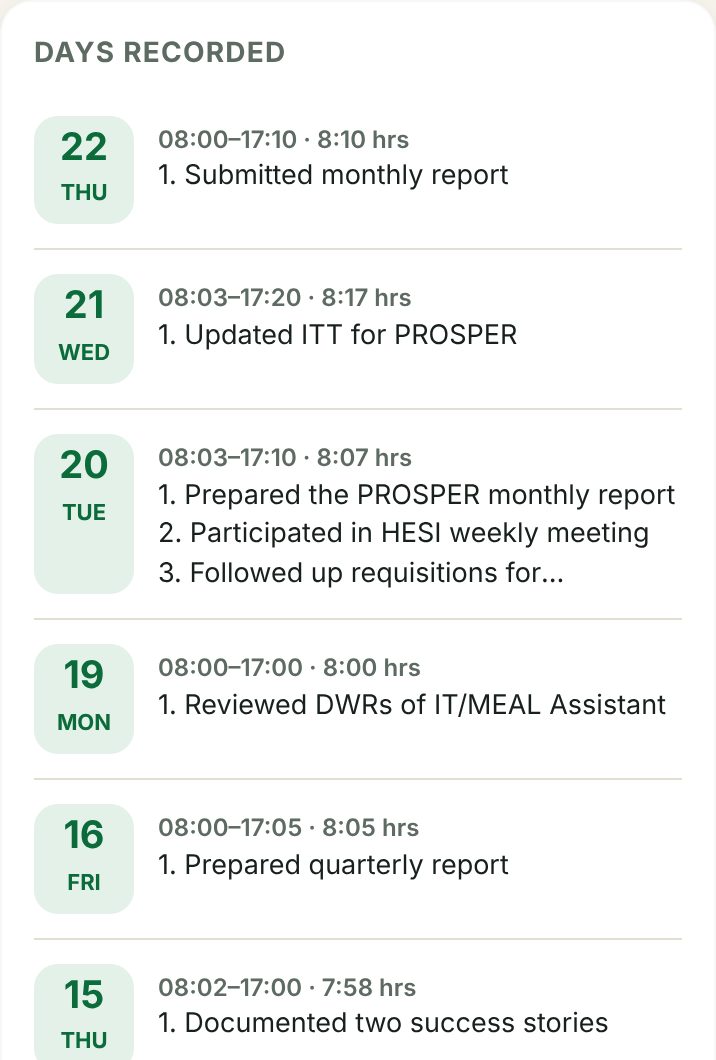
After downloading
- Open the file in Excel (or Excel/WPS on your phone) and check it.
- Share or print it as your office requires, and pass it to your supervisor for the Supervisor's Comment and Signature, then to HR.
8Working without internet
The app works offline — useful in settlements and during field days.
| Without internet you can | Needs internet |
|---|---|
| Open the app, record and edit days, see the Month summary, download your DWR | Creating an account, first sign-in on a phone, the Team tab, syncing |
- The label at the top shows Online, Offline or Syncing….
- When you save offline you see "Saved on this phone — will sync when online". When the connection returns, the app sends your saved days automatically.
- Open the app at least once with internet on each phone, so it can store itself.
9For supervisors
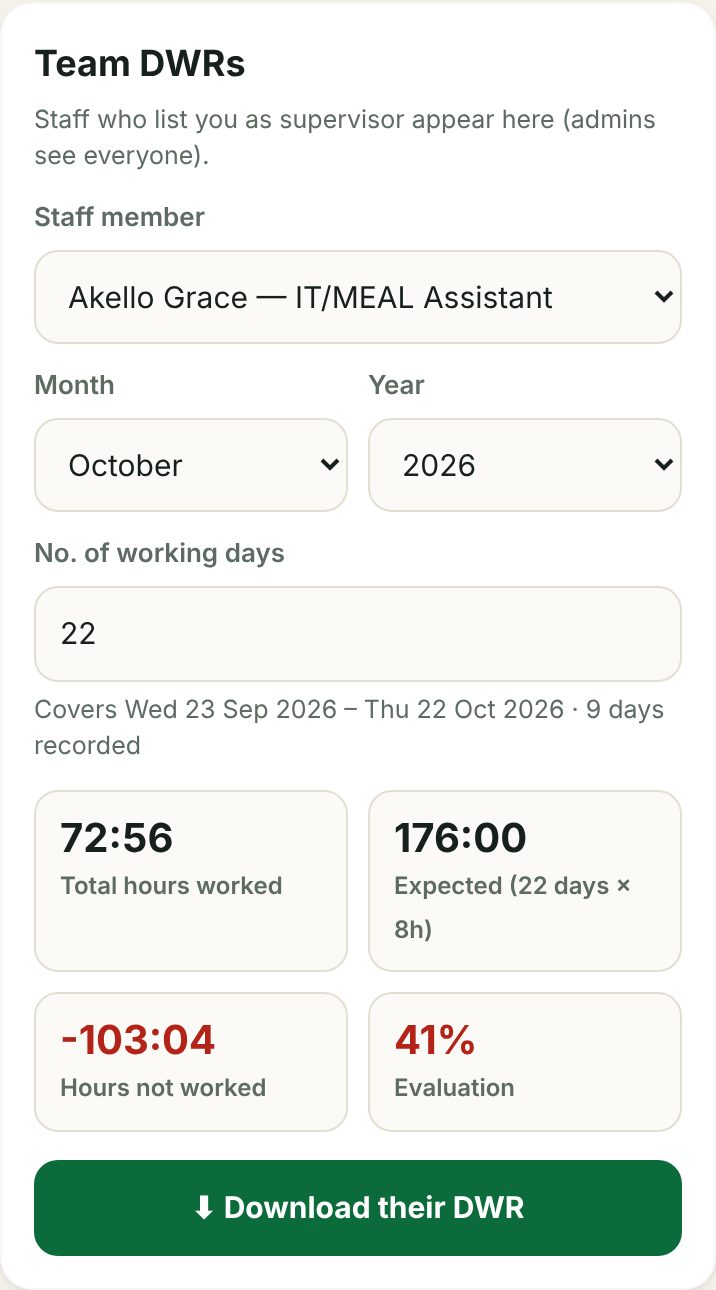
The Team tab appears automatically when at least one staff member has entered your email as "Supervisor's email" in their profile. Portal administrators see all staff.
- Choose the staff member, month and year.
- Check the number of working days and the summary.
- Scroll down to read each day recorded.
- Tap ⬇ Download their DWR for the completed Excel template.
Supervisors can view and download but cannot change a staff member's records.
10Good practice
- Record every day, not at the end of the month — it takes two minutes and your times are accurate.
- One activity per number, starting with an action word: Prepare…, Participate in…, Review…, Conduct…
- Name the project (PROSPER, HESI, Bidi Bidi, SEA-WN…) so your work can be linked to project reports.
- Implemented ≠ planned. Write what was actually done, with the result where possible: "Reviewed four CNs and shared comments with Finance".
- Use Comment to explain changes, delays or why a planned activity was not done.
- Before downloading, clear all red missing days on the Month tab.
11Problems and answers
| Problem | What to do |
|---|---|
| "You already have an account with this email" | You registered in another RICE-WN app. Sign in with that password, or tap Forgot password?. |
| I didn't get the confirmation / reset email | Wait a few minutes and check Spam or Promotions. Make sure the email address was typed correctly. |
| Wrong name or job title on the DWR | Profile → correct it → Save details → download again. |
| A day is in the wrong month | Remember the period is 23rd–22nd. A day on 23 October belongs to November's DWR. |
| Hours look too low | Lunch (1–2 PM) is not counted. Also check that the day has an end time. |
| "This month is full" | The template holds 25 days. Delete a duplicate or unneeded weekend entry. |
| The top label stays on "Offline" / "Syncing…" | Check your data or Wi-Fi, then close and reopen the app. |
| The download doesn't open | Look in your phone's Files → Downloads. Install Microsoft Excel or WPS Office to open .xlsx files. |
| My supervisor can't see my DWR | Profile → check "Supervisor's email" is correct → Save details. |
| I changed phones | Sign in on the new phone — all synced records are there. |
12Getting help
For help with the app, accounts or the DWR template, contact the MEAL Office, RICE West Nile Head Office (MEAL Officer: Anyama Herbert).
When reporting a problem, say which phone you use, what you tapped, and what message appeared — a screenshot helps.
RICE West Nile · Daily Work Record App · User Guide v1.0 · October 2026